Reasons you shouldn't use Linux
My wife asked me a poignant question a couple of weeks ago, “If Linux is SOOO awesome, why don’t you stop using Windows?” I told her that I couldn’t play civ4. “I thought you said it was ready for use and equal to Windows,” she continued. And I realized, there are probably some others who prosthelyze about how awesome Linux is. While I think Linux is amazing, and can do some great things which are hard or impossible to do in Windows, it is not for everyone.
CLI = Command Line Interface
You may wonder what use the command line has? Afterall, why use it when you have a GUI? Well, they are so useful, that Microsoft will be reimplementing it in Windows Vista to allow people to run shell scripts. I’ve blogged about the usefulness of the command line before, but I wanted to demonstrate with some examples.
As I was reading about DSL, I wanted to download the ISO so that I could try it out. But how to do this quickly and without my intervention? Enter the program wget. wget allows you to download from the internet in the commandline. You can download one thing, such as an iso, or you can download an entire website for offline browsing. What makes it better than using your browser to download is that you can set it to retry a number of times so that if the download gets disconnected for some reason, it will continue to try. Also, a good thing to always do when downloading an ISO is to check the md5sum, allowing you to know that your file was not corrupted during a download. No biggie if you are just downloading one thing, but if you are downloading a couple of ISOs, it can get a little tedious. Using the commandline should help you out. So here’s how I started off:
Linux Screenshots
Here are some of the latest screenshots I’ve taken of my main Linux desktop and how to do the same for yourself. Click on the screenshot to be taken to the fullsize picture. I finally listened and provided a low-res picture here instead of resizing the large one, thus a faster download time for those of you on dial-up.
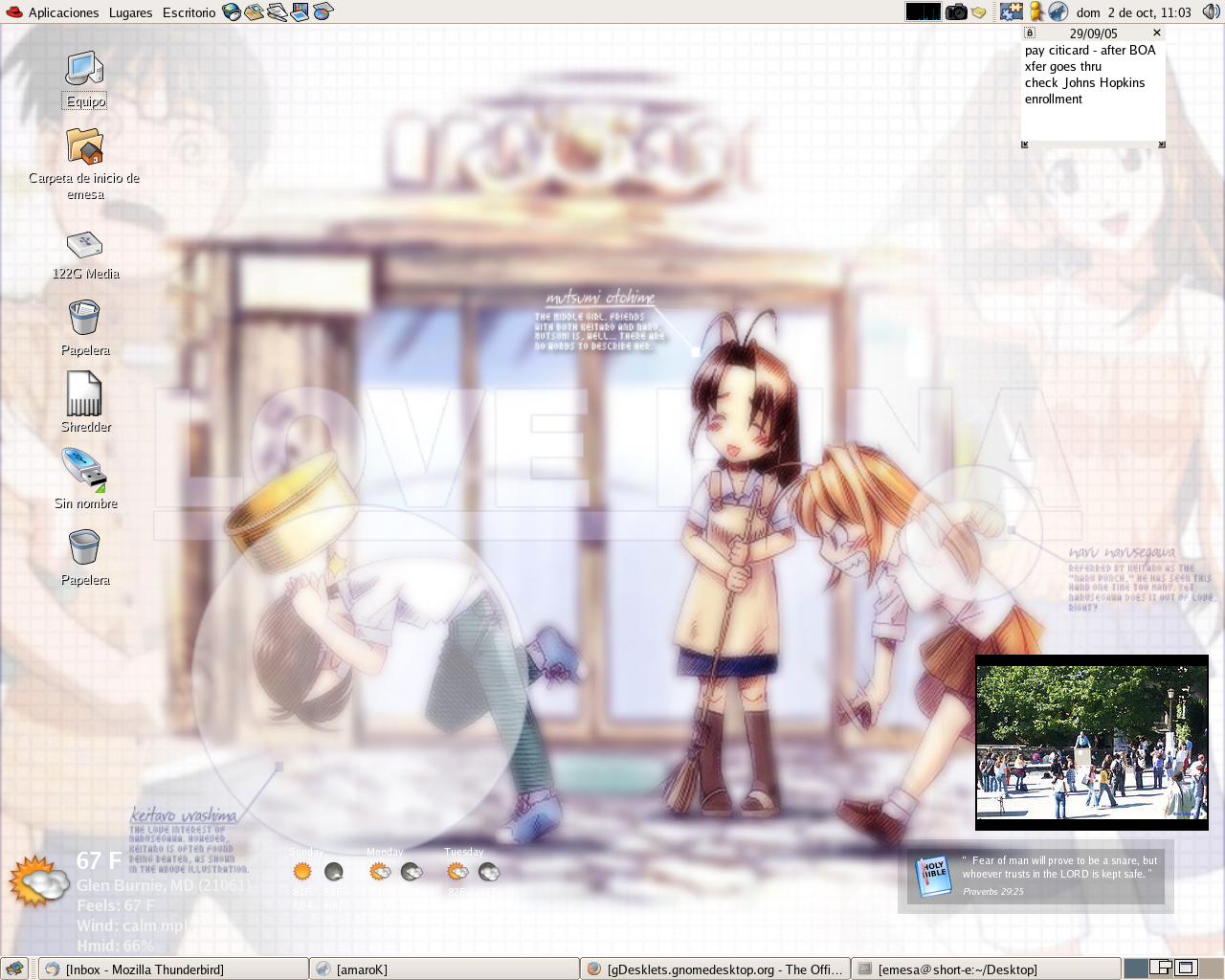
These add-ons on my desktop as known as eye candy. They are on my desktop to look cool and provide some functionality. It’s nothing I can’t already do by going into a web browser, but it looks neater doing it like this - to some anyway. First off, you’ll notice that my menu bar and icons are in Spanish. That isn’t part of the eye candy, but I figured I’d let you in on how to do that in case you also wished to practice your technology vocab. When you are starting up your computer, if you are using Fedora you will have GDM as your greeter - the place where you type in your username and password. Other distros may also use GDM or you may select it on your own. There is a button called “languages” and if you click there, it will set all of the menus to be in Spanish. And when you load Firefox up and go to Google, it will be Google in Spanish! (or whatever language you selected, if it’s supported)
DSL
What does DSL mean to you? If you’re a technological person, it might mean Digital Subscriber Line, a way to access the internet. If you’re not a technological person….well, just ask my sister-in-law what it means to her. But to Linux users, DSL has even a third meaning, Damn Small Linux. What is Damn Small Linux? It is an entire Linux distrobution that fits on a 50 MB “business card” CD-ROM. It’s based on the Live CD technology devised by Klaus Knopper of Knoppix fame. He has created a phenomenon by perfecting the idea of having an operating system running entirely in the user’s RAM. This allows you to use Linux wherever you go, no matter what computers are available, and you won’t be touching the underlying system!
Linux News!
Some tidbits I’ve gleaned and where to get more in depth info:
KDE3.5 has been released! Hopefully this means that it will make its way into the Fedora Core 5, due out in Feb 2006. Or, if they’ve completely moved KDE to the extras packages, maybe it will be available even earlier! Lots of info here and screenshots here!
Speaking of Fedore Core 5, there is a review of the latest devel freeze to be found at this O’Reilly site.
WOW!
I finally had an awesome enough computer to run Gnome and KDE! I was so excited and downloaded Super Karamber, gdesklets, and all the other eye candy I could never enjoy on my old Linux box. (which is now serving as a debian print server) However, having used Fluxbox so long on the old computer caused me to long for fluxbox. There was something I just liked about it. Perhaps it was the inobtrusivness which comes from a lack a large program menu or maybe it was right-clicking for programs or the way I did almost everything in a term window. So I was getting a little tired of having Gnome in Spanish, as I had switched it to about a month ago for fun so I decided it was time to end my session and start a new one. I always wanted to take advantage of having a GUI with a low memory profile since I wanted to begin working on Cinelerra (see my tutorial tomorrow), which takes up quite a bit of RAM.
Fedora Extras Repository
There was a heckuva lot of debate on the Fedora Development list server when the extras repository was first mentioned for Fedora Core 4. People were taking exception to the fact that their package was in extras while some other package was in core. Some threatened to stop making FC packages and others just whined a lot. Well, the extras repository has debuted and I hope that people see that it’s really not a bad idea at all, In fact, I think it’s an excellent idea.
Customising your Linux Desktop
Here’s a really great article that I found about customizing one’s desktop. This is the most important thing a geek can do with his or her computer. When you first get your computer it looks just like everyone else’s computer. By customizing it and taking a little bit from what you see on this person’s computer and that person’s computer you end up with something that is uniquely your own and slightly different from everything else you’ve seen. Be sure to visit the link provided below to see the screenshots.
Fedora Core 4
I finally got Fedora Core 4 running after nearly 12 hours of installation. Boy, that was a little rough on my patience. The first change I noticed is that the default “time left” bar is candy cane striped now instead of solid blue.
I decided to boot first into Gnome and see what this new “Clear Looks” theme looked like. It pretty much lived up to my expectations. It is a much cleaned-up version of Bluecurve, just as everyone claimed before. By cleaned up I mean that it’s a much more streamlined-looking, post-modern theme. It’s more like XP inthat the corners are more rounded and the buttons look nicer. Unlike XP there’s no annoying red “X” button. The other icons look the same. It may be me, but they look like they are rendered a bit nicer, but it could be in my head. Gnome also seems to run faster than it previously did, but I have no way of testing this. I didn’t do any benchmarking before and my other Linux computer is on a significantly slower processor.
Finally, Part 1
After two days of downloading, finally got Fedora Core 4 downloaded. Currently burning the discs, but I won’t get to play until I get back from work. It’s going to be an ancy day.