KDE Plasma 6 TTRPG Activity
EricMesa
- 5 minutes read - 923 wordsI was an early adopter of KDE’s activities when they were first introduced in KDE 4. From what I read of various blog posts by KDE developers I’m in the minority. It’s hard enough for folks to get the concept of virtual desktops (although now with both OSX and Windows including the features maybe more folks are getting used to it), but activities creates an orthogonal virtual set of desktops. I wrote a blog post back in 2015 where I spoke about how activities helps me focus on my computer. Nowadays, I might make an analogy to Vivaldi’s workspaces and tabs (which has recently also been adopted by Firefox and Zen).
Here is what my TTRPG activity looks like on my desktop (since I have 4 monitors and 2 of them are 2k, you’ll have to click through to get a usable image OR keep reading where I go through each screen individually):
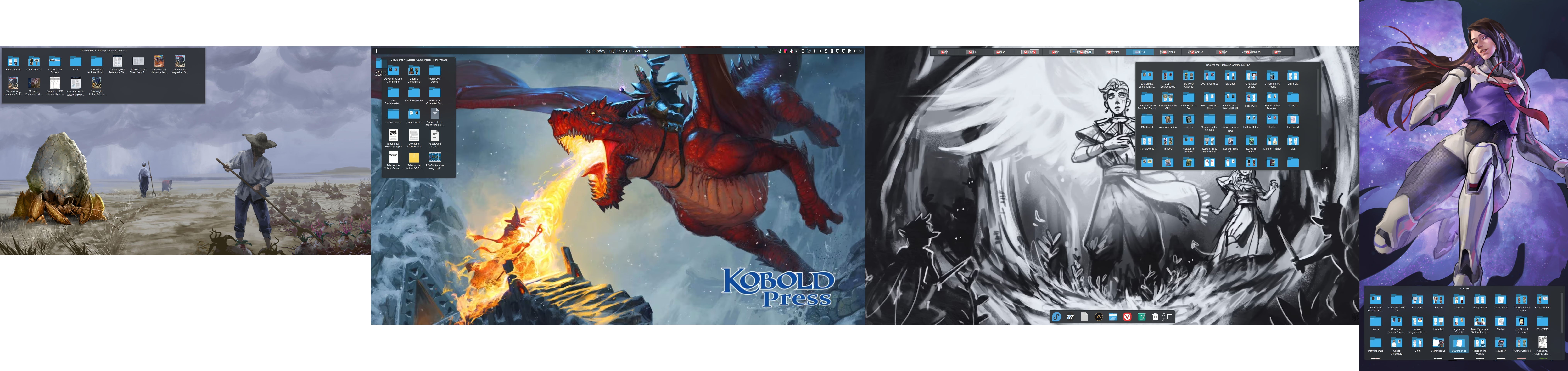
My TTRPG KDE Plasma 6 activity
I use KDE Plasma 6’s built-in slideshow desktop background feature to change the image periodically. Here’s what came up next while I was working on this blog post.
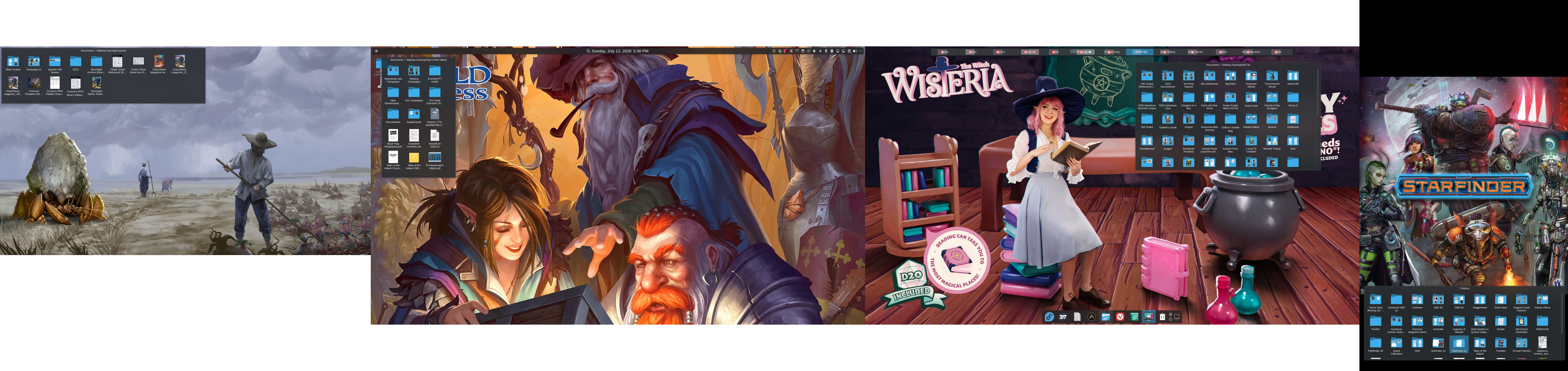
My TTRPG KDE Plasma 6 activity with another set of background images
There are 2 big things I take advantage of with Plasma’s activities. 1) folder view and 2) different shortcuts on the taskbar per activity. Let’s start off with the left-most screen:
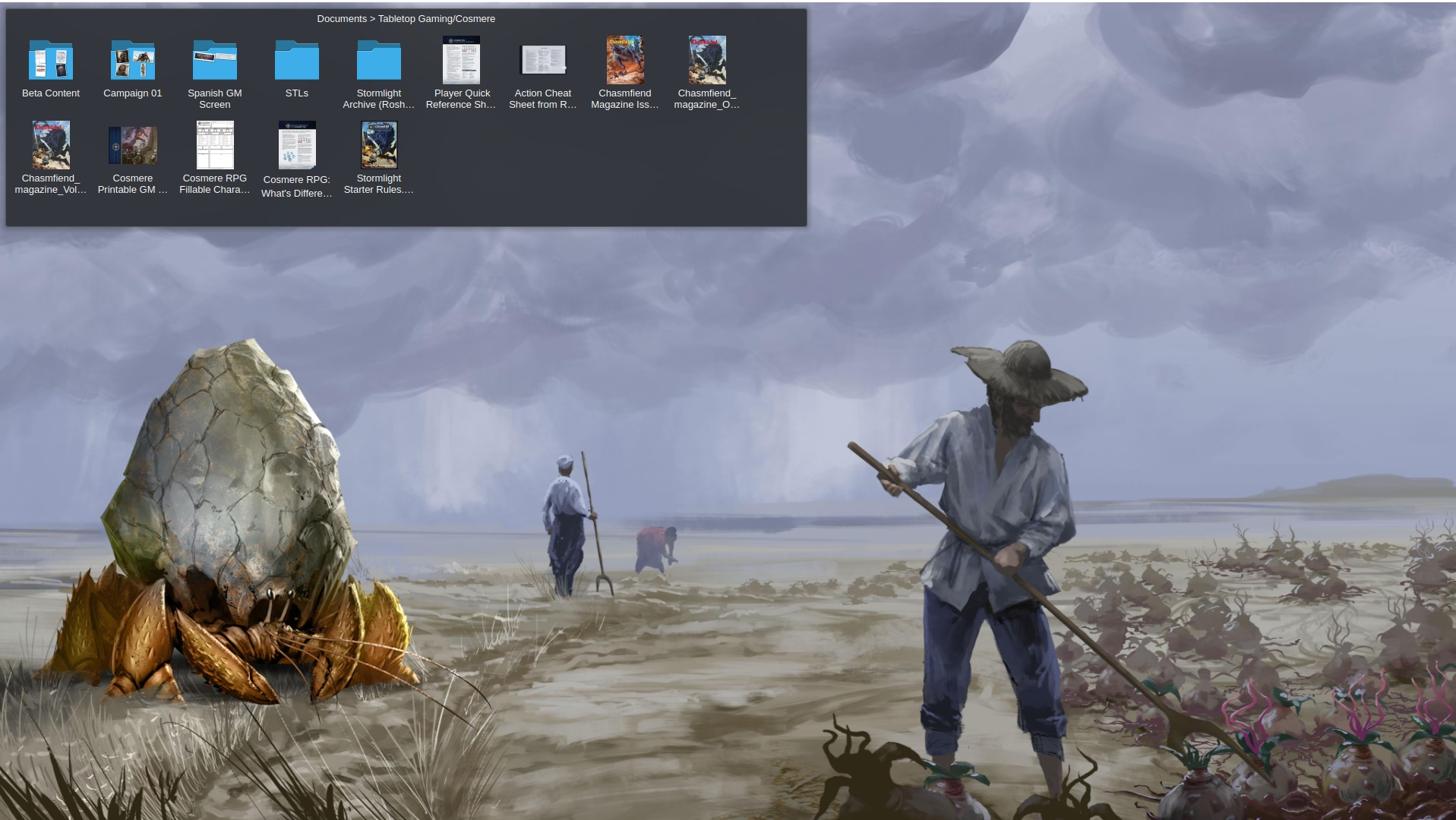
Cosmere Desktop
If you’re not familiar, KDE Plasma desktops are customized with widgets. In KDE 3 this was through a 3rd party app called Super Karamba. Ever since KDE 4 it’s been a built-in feature. What the folder view widget allows is for custom sets of folders to be put on your desktop as opposed to either the boomer paradigm of saving everything to the desktop (or is that just my parents?) or having a bunch of shortcuts off your desktop. Since one of the TTRPGs I’m playing quite often is the Cosmere TTRPG, I created a folder view into the folder that has the PDFs, images, STLs, etc. The advantage over a shortcut (which is how I would do this on Windows) is that I can click directly into any of folders you can see there (or PDFs) instead of having to click, wait for the file explorer to load and then continuing to click into the actual folder I want. I don’t have too many landscape Cosmere images, so this background is always the same.
Onto the next desktop:
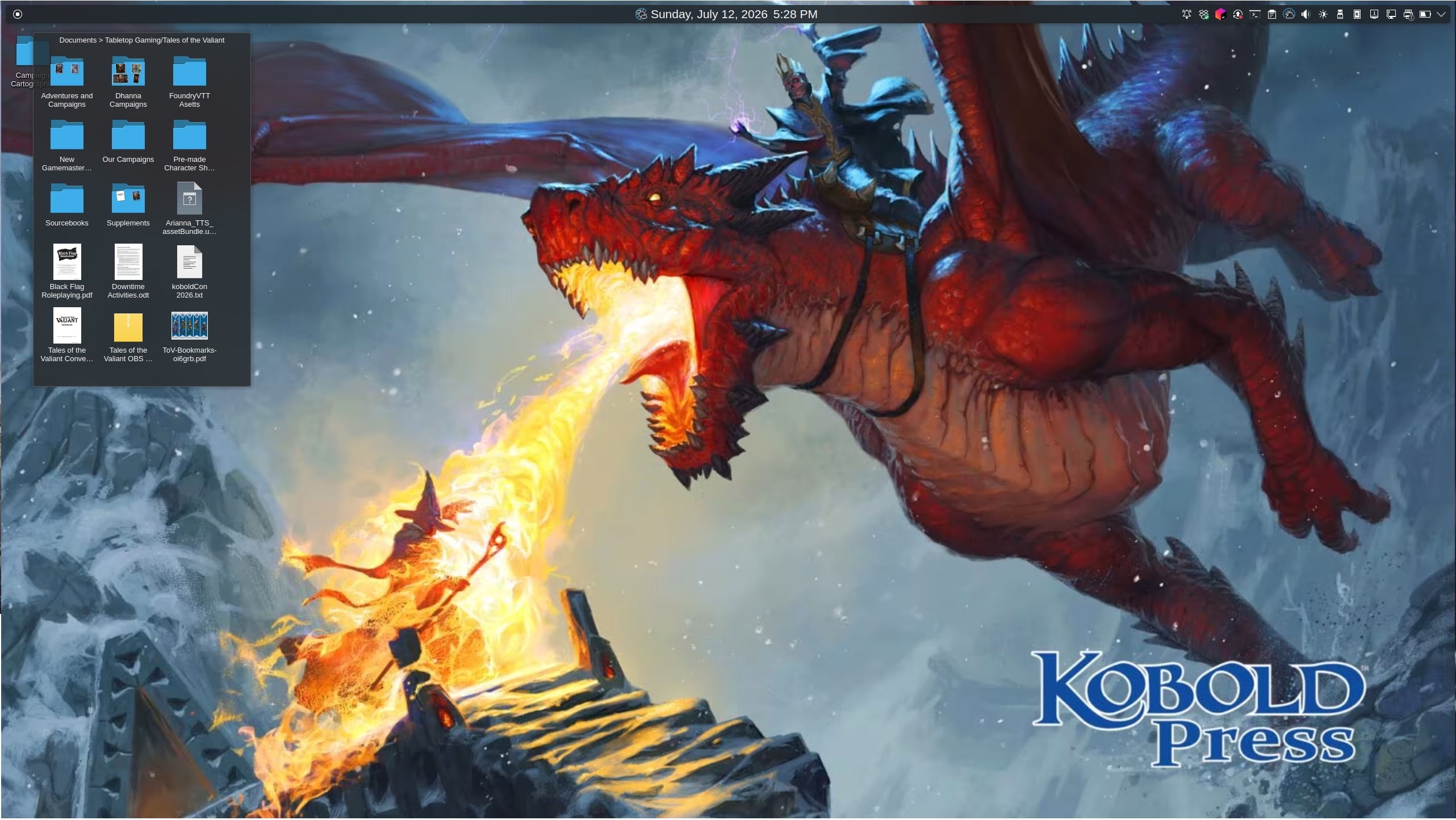
Tales of the Valiant Desktop
The TTRPG I play most with the kids is Tales of the Valiant and so I have a folder view here for that as well. I’m also taking advantage of KDE’s infinite flexibility vs Vanilla Windows or Mac OSX. On this monitor I have placed a taskbar on the top of my screen. The leftmost widget is essentially a controller for whatever audio program is playing music or other sounds on my computer. The middle has a weather widget and a date/time widget which expands to a calendar if I click on it. The right-hand side has the notification area. The background here cycles across the 3 or 4 Kobold Press backgrounds. They haven’t released too many recently - probably because most people don’t care about computer, tablet, or phone backgrounds anymore? I’m not sure, but it’s a similar situation with Paizo. Going back through their blog shows that they used to release tons of background images, but none recently.
Third desktop:
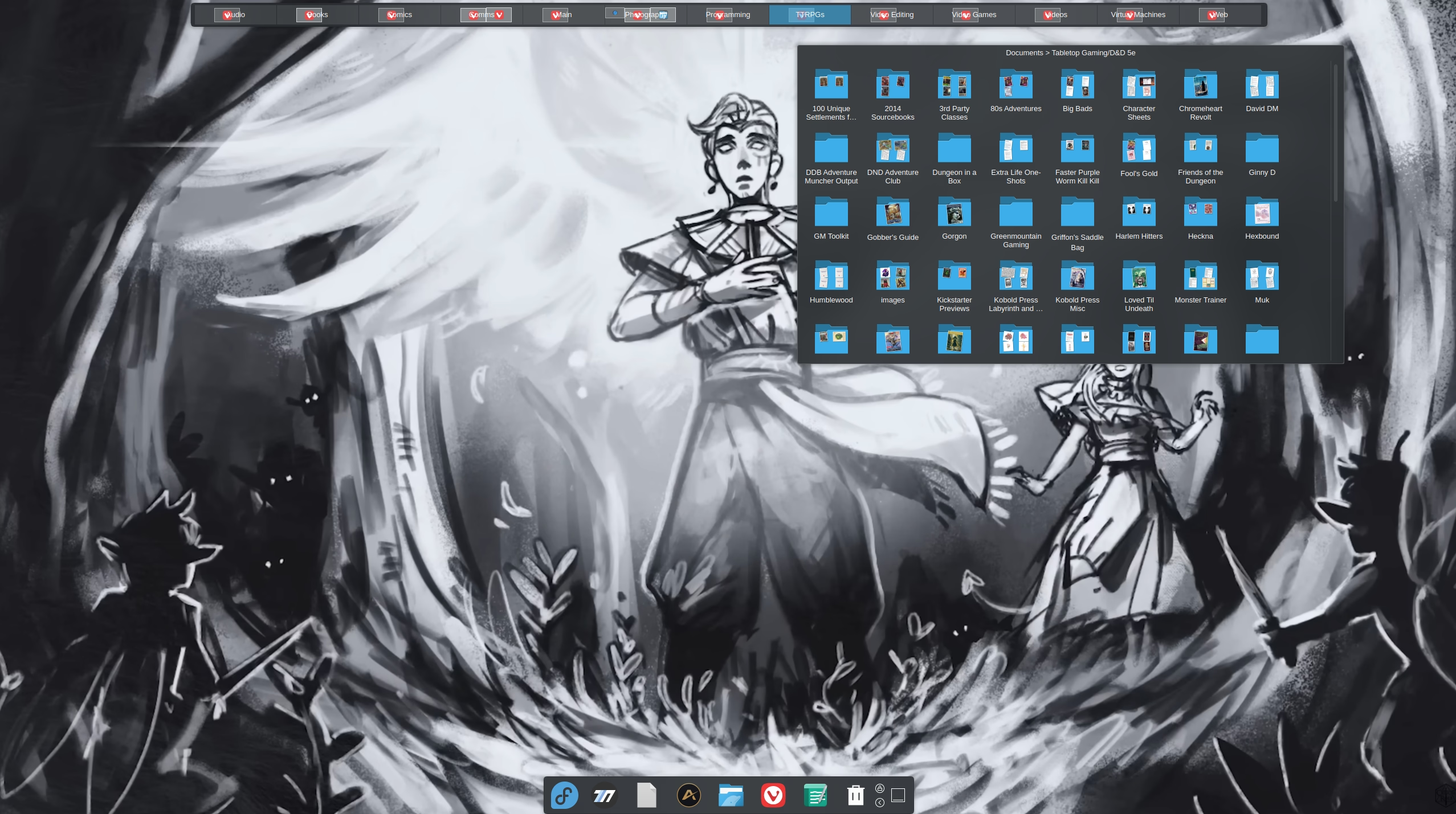
D&D 5e Desktop
I don’t play D&D 5e nearly as much as I used to, but I do still access some of these folders quite often. Sometimes it’s to get to Faster Purple Worm Kill Kill! Other times it’s to get to the Kobold Press books that were released for 5e, but are still compatible with Tales of the Valiant. For now it retains its place of prominence among the various TTRPGs, but that could always change.
The backgrounds here go between Critical Role backgrounds (like the one you see here), Ginny Di backgrounds, and some official D&D backgrounds.
The top bar allows for easy access to the different activities I use on this computer. The taskbar at the bottom functions similar to a launch bar on OSX or one I used to use on KDE through a third party app. It’s much more stable using the built-in KDE functionality at the cost of not having that cool effect where the icon that is hovered gets larger. It auto-hides when not in use. I’m not sure where there’s a Nheko icon on there, I might have had a message from my Comms activity. The unique shortcuts I have on here are the two to the right of it. The one with no image on it launches my local install of FoundryVTT. I have no idea why I can’t get the icon to show up when it’s closed, but it does show correctly when Foundry is open. I use my local install to test modules and various settings before making changes on my server install. Next to that is a shortcut for the AlchemyVTT program.
Final desktop:
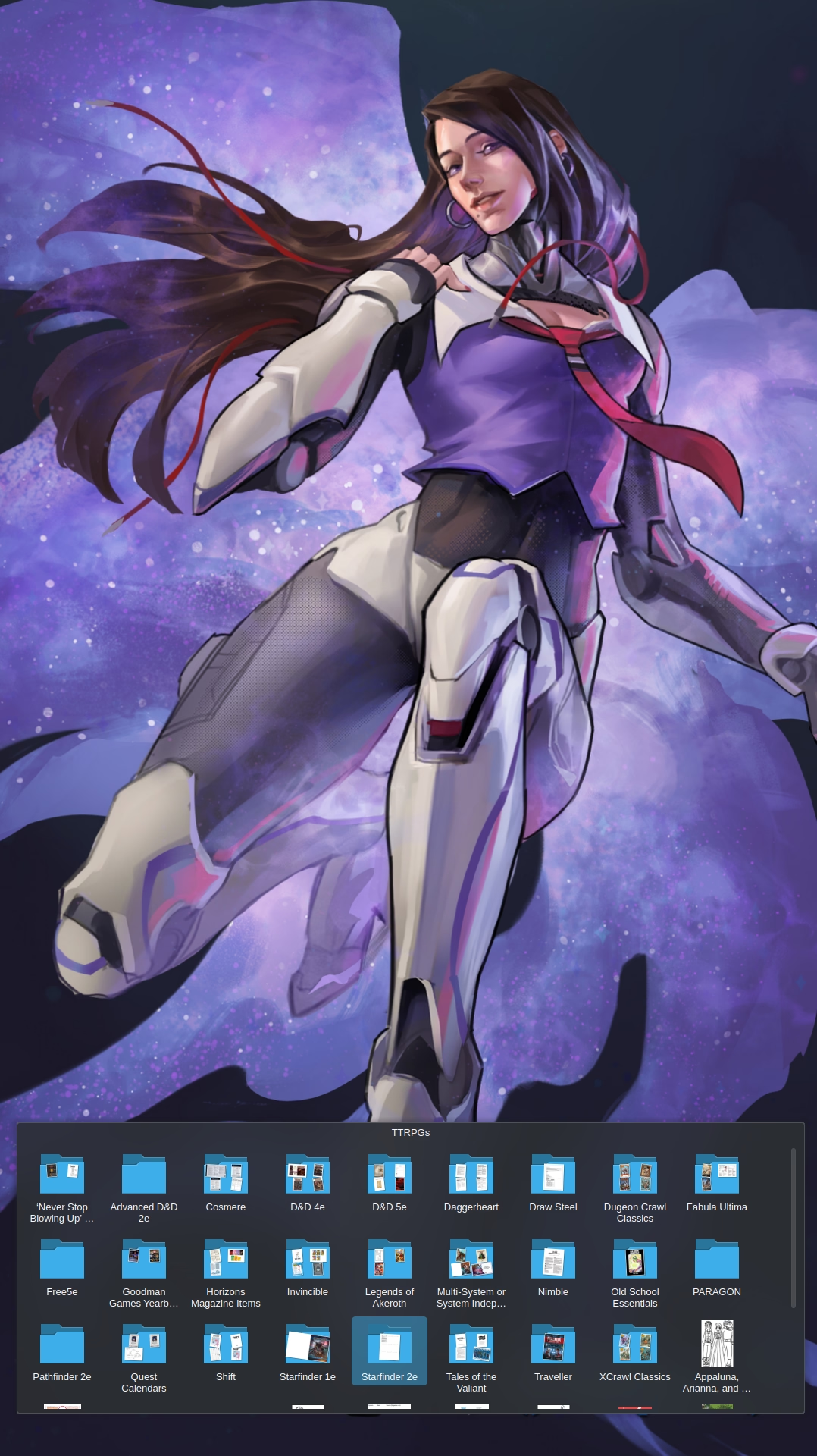
All my TTRPGs Desktop
My final monitor is rotated vertically. This allows me to read full-pages of PDFs at 100% magnification or use my terminal when I want to do less scrolling. This is just the base folder for all my TTRPGs so that I can easily jump into any system.
The only vertical TTRPG images I have are from Paizo, so it circulates between Starfinder and Pathfinder images.